
Menu
Learn Photography
Editing Effects & Techniques
Learn what an editing effect changes, when it helps, and how to build it deliberately. Use these recipes as starting points on copies of photographs you have permission to edit. A look that works on one photograph may overwhelm another.
Before you begin
Preserve originals and existing edits. Use a virtual copy, adjustment layers, or a separate working file. First establish a sensible exposure and white balance. Apply one effect at a time, compare at equal size, and inspect the exported result. Check the histogram, important highlights, fine edges, and natural-looking skin when relevant. Our examples use licensed third-party photographs; none are Dynamic Depth Photo originals.
The before images are the source photographs as published, resized for presentation; they are not claimed to be camera-original or unedited files. The after images are clearly labeled teaching demonstrations made for this guide. Numerical suggestions below are editorial starting points, not settings supplied by the source photographers. Slider scales and processing differ between programs. Exact demonstration settings are separately recorded and are not Adobe preset equivalents.
Start with Editing with Intent and non-destructive editing if you need a foundation.
Cinematic color separation
What changes: Cooler shadows and warmer highlights create color separation and a deliberate mood. “Cinematic” describes many looks; teal and orange is one option.
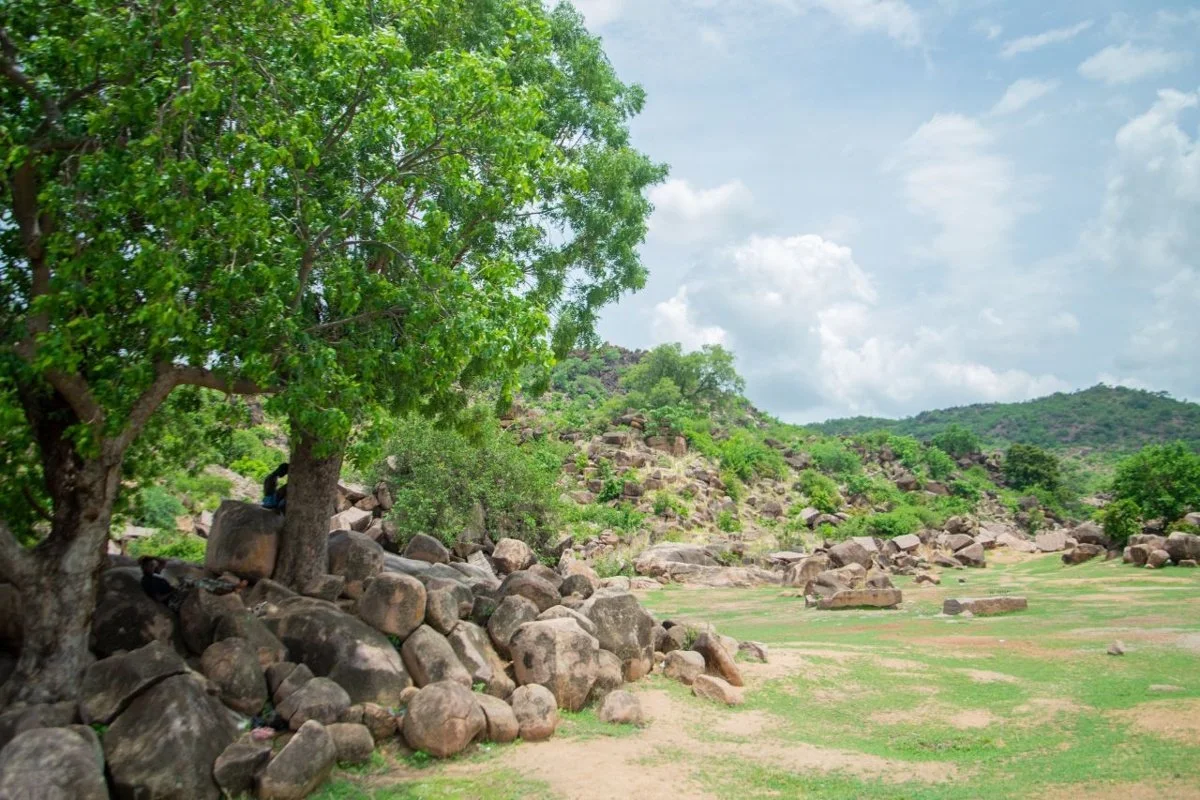
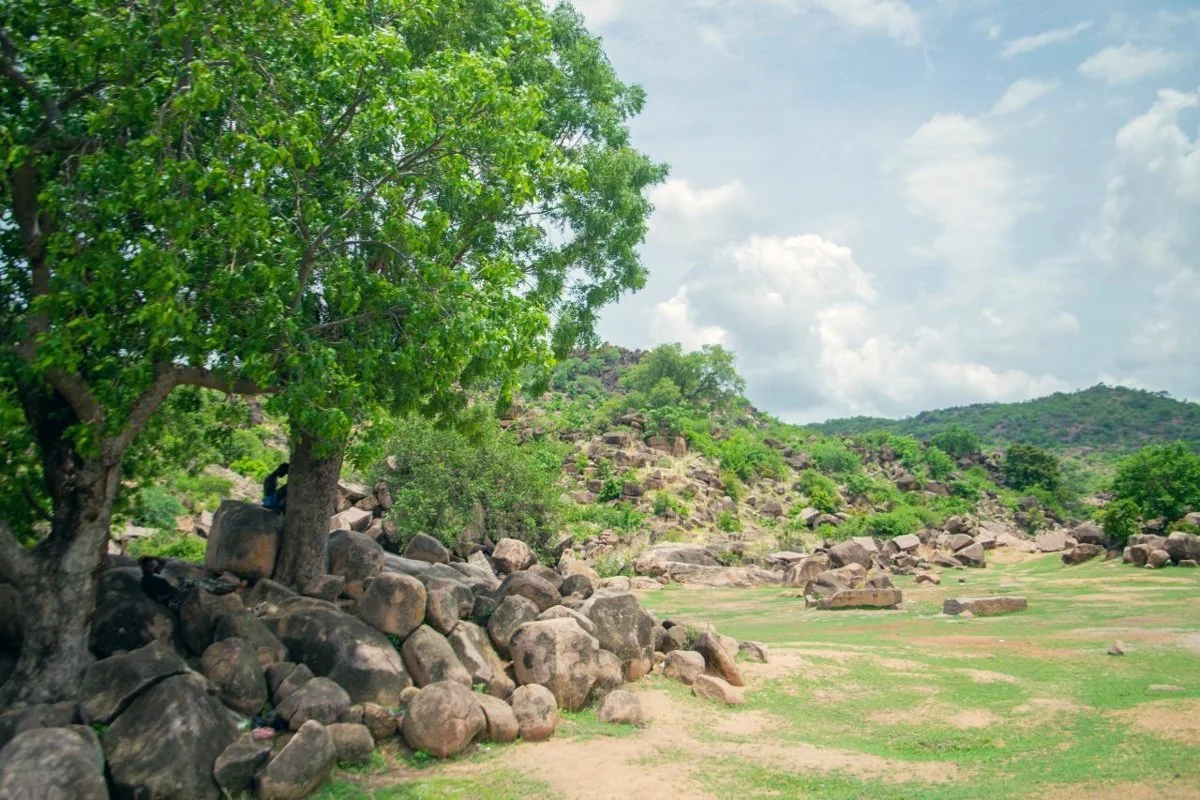
Source: Rocky landscape with trees and hills by Salma A. L Suhuyini, via Wikimedia Commons. CC0 1.0. Baseline resized; teaching edit altered as described here. No endorsement implied.

Try it: Begin with balanced exposure. Add a restrained blue-green tint to darker tones and a warm amber tint to brighter tones. Adjust the transition between them. Keep neutral colors and important skin tones natural-looking. Reduce overall effect strength until the palette supports the scene.
Useful for: Atmospheric landscapes, environmental portraits, and storytelling series.
Watch for: Cyan faces, orange whites, and a grade that makes every photograph look identical. Do not mistake dramatic color for improved composition.
Adobe route: Lightroom Color Grading offers shadow, midtone, and highlight controls plus Blending and Balance. [1]
Exact demonstration settings: Cinematic color separation
Cool shadows by RGB (-0.035,+0.025,+0.045) weighted by max(1-2Y,0); warm highlights (+0.035,+0.012,-0.028) weighted by max(2Y-1,0).
Educational edit made for this guide from a CC0 photograph. Settings are a reproducible simulation, not the source photographer’s process or an Adobe preset.
All demonstration arithmetic uses display-encoded RGB, not scene-linear RAW data. These formulas describe this guide’s illustration, not equivalent settings in a photo editor.
Matte or faded blacks
What changes: The darkest output values become dark gray rather than black, giving the shadows a faded appearance.
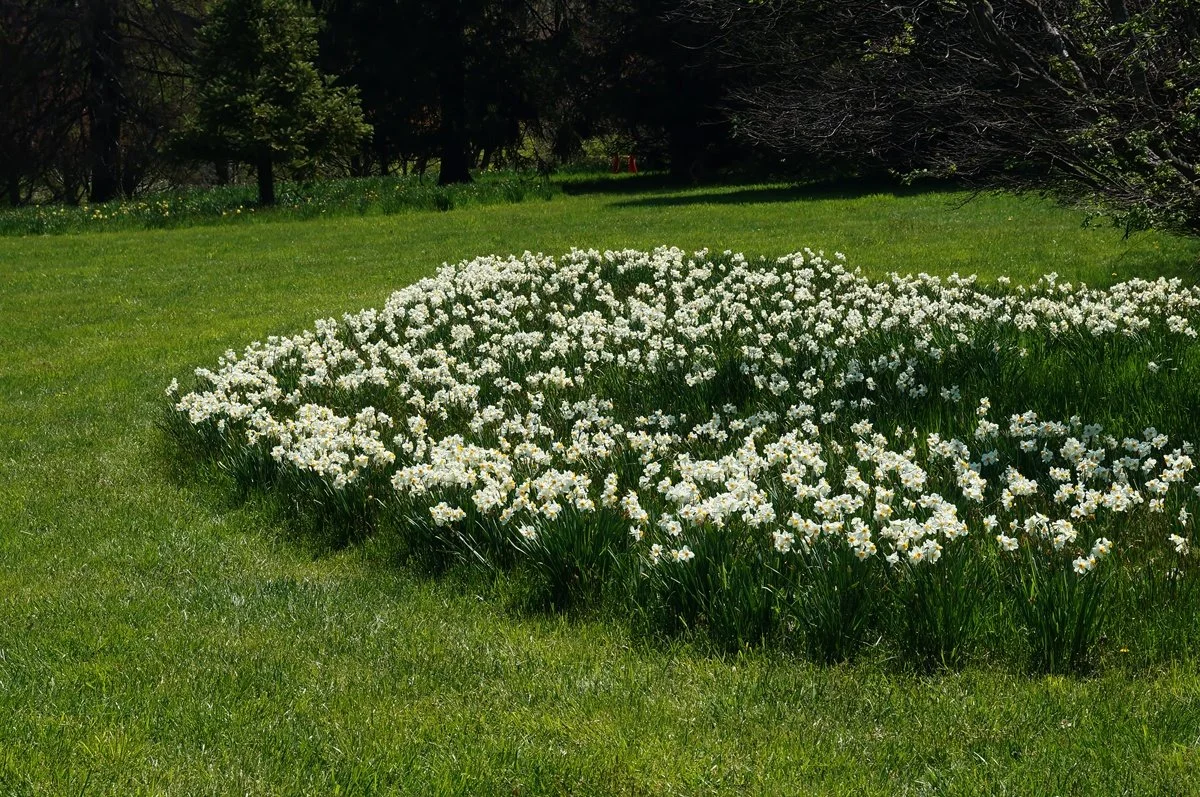
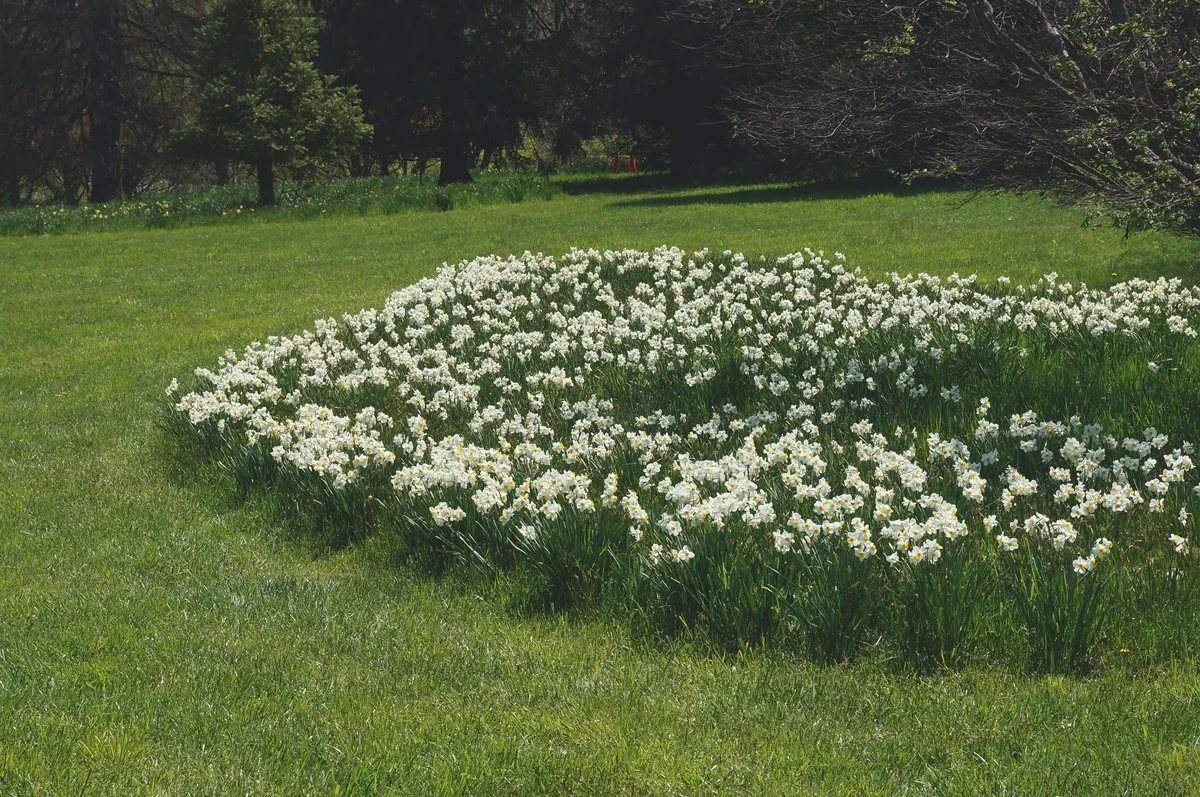
Source: Flowers in Full Bloom by Bruce Emmerling, via Wikimedia Commons. CC0 1.0. Baseline resized; teaching edit altered as described here. No endorsement implied.

Try it: On a point curve, raise the black endpoint slightly. Hold the lower midtones with a second point if the picture becomes washed out. Keep enough midtone separation for the subject to remain readable. Try a black floor around 3–10% of the output range; our deliberately visible teaching example uses 12%.
Useful for: Quiet landscapes, restrained editorial treatments, or a cohesive vintage-inspired series.
Watch for: Gray haze across the whole picture and weak subject separation. Raising the black floor cannot recover detail already absent from the source.
Adobe route: Use a Curves adjustment layer in Photoshop, or the point curve in Lightroom. [2]
Exact demonstration settings: Matte or faded blacks
Map every normalized RGB channel x to 0.12 + 0.85x; black floor 12%, white ceiling 97%.
Educational edit made for this guide from a CC0 photograph. Settings are a reproducible simulation, not the source photographer’s process or an Adobe preset.
All demonstration arithmetic uses display-encoded RGB, not scene-linear RAW data. These formulas describe this guide’s illustration, not equivalent settings in a photo editor.
Split toning
What changes: Different tints are applied to lighter and darker tones. A monochrome base makes the separation easiest to study.
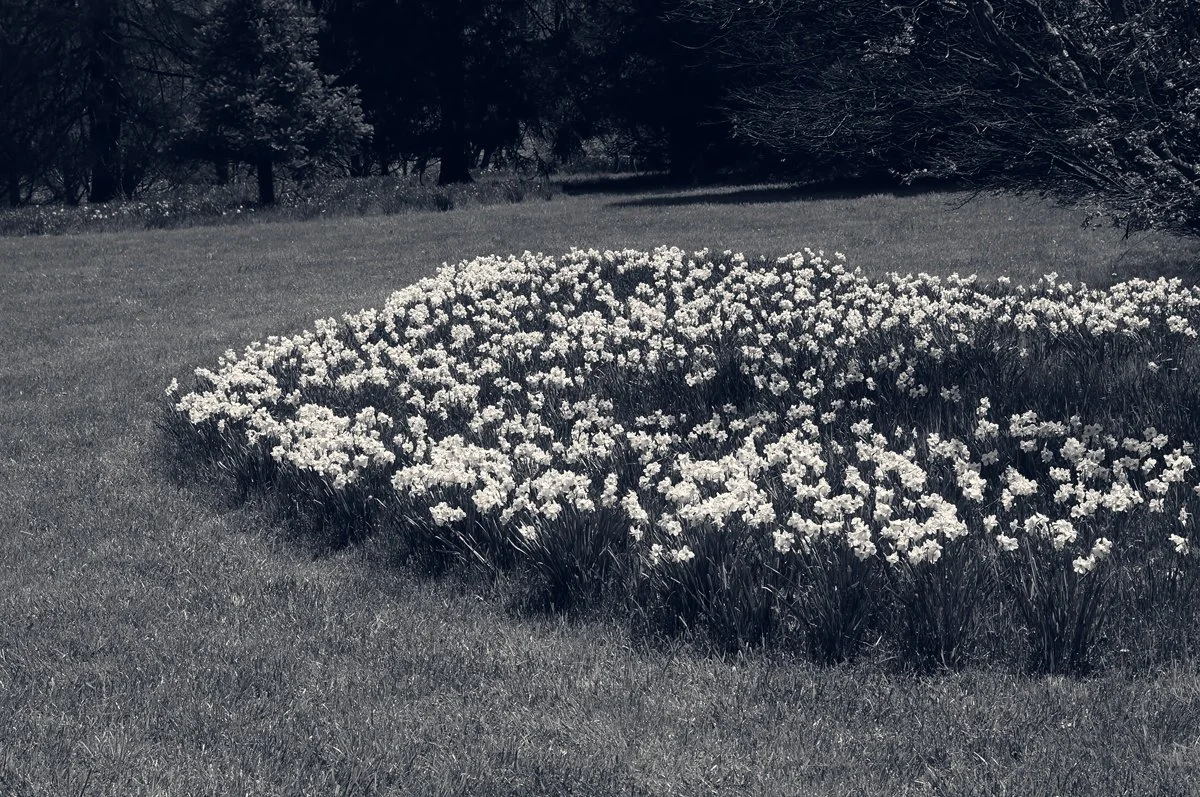
Source: Flowers in Full Bloom by Bruce Emmerling, via Wikimedia Commons. CC0 1.0. Baseline resized; teaching edit altered as described here. No endorsement implied.
Try it: Build a readable black-and-white conversion. Tint shadows blue and highlights amber, keeping both subtle. Move their balance point and soften their overlap. Compare against the neutral version to decide whether the tint adds meaning.
Useful for: Fine-art series, architectural details, and mood studies.
Watch for: Muddy midtones and excessive saturation. Split toning can also be applied to color photographs; it is not the same operation as changing white balance.
Adobe route: Lightroom Color Grading, Shadows and Highlights, then Blending and Balance. [1]
Exact demonstration settings: Split toning
Convert to weighted grayscale Y=0.2126R+0.7152G+0.0722B; shadow tint (-0.025,+0.01,+0.075)×max(1-2Y,0); highlight tint (+0.065,+0.025,-0.03)×max(2Y-1,0).
Educational edit made for this guide from a CC0 photograph. Settings are a reproducible simulation, not the source photographer’s process or an Adobe preset.
All demonstration arithmetic uses display-encoded RGB, not scene-linear RAW data. These formulas describe this guide’s illustration, not equivalent settings in a photo editor.
High-contrast black and white
What changes: Color becomes shades of gray, with a wider separation between dark and bright regions.
About this example: This deliberately strong teaching edit sacrifices some highlight and shadow detail to show the effect. It is not a recommended default. For a more restrained result, lower contrast and protect important detail.
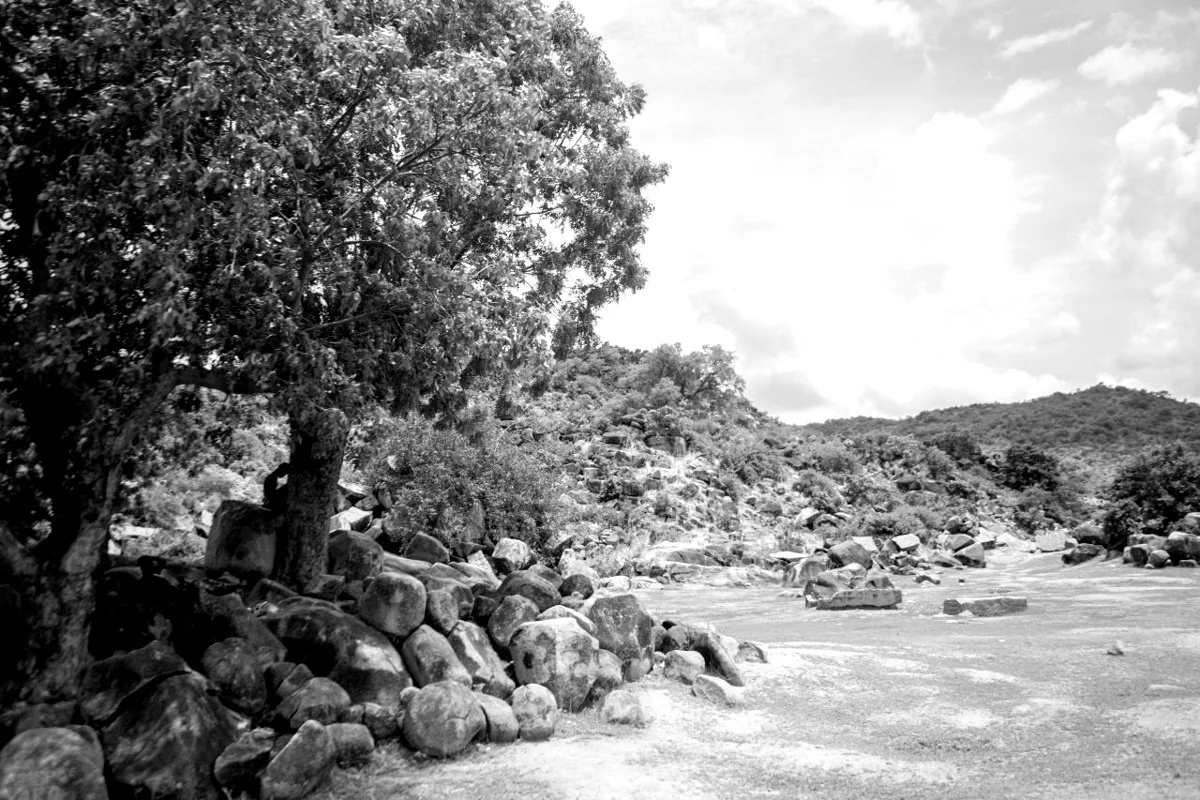
Source: Rocky landscape with trees and hills by Salma A. L Suhuyini, via Wikimedia Commons. CC0 1.0. Baseline resized; teaching edit altered as described here. No endorsement implied.
Try it: Convert with a monochrome mixer rather than merely removing saturation. Adjust the original color channels so adjacent objects stay distinct. Deepen selected shadows and brighten important lighter tones with a gentle contrast curve. Inspect clipping, particularly in clouds and clothing.
Useful for: Strong shapes, graphic architecture, and dramatic light.
Watch for: Featureless black areas and bright blank patches. Contrast should serve a chosen focal point; every textured surface need not be equally forceful.
Adobe route: Photoshop Black & White adjustment layer, followed by a separate Curves layer. [3]
Exact demonstration settings: High-contrast black and white
Weighted grayscale, then contrast 1.45 around mid-gray 0.5; clip output to 0–1.
Educational edit made for this guide from a CC0 photograph. Settings are a reproducible simulation, not the source photographer’s process or an Adobe preset.
All demonstration arithmetic uses display-encoded RGB, not scene-linear RAW data. These formulas describe this guide’s illustration, not equivalent settings in a photo editor.
Sepia and warm monochrome
What changes: A monochrome image gains warm brown tones.
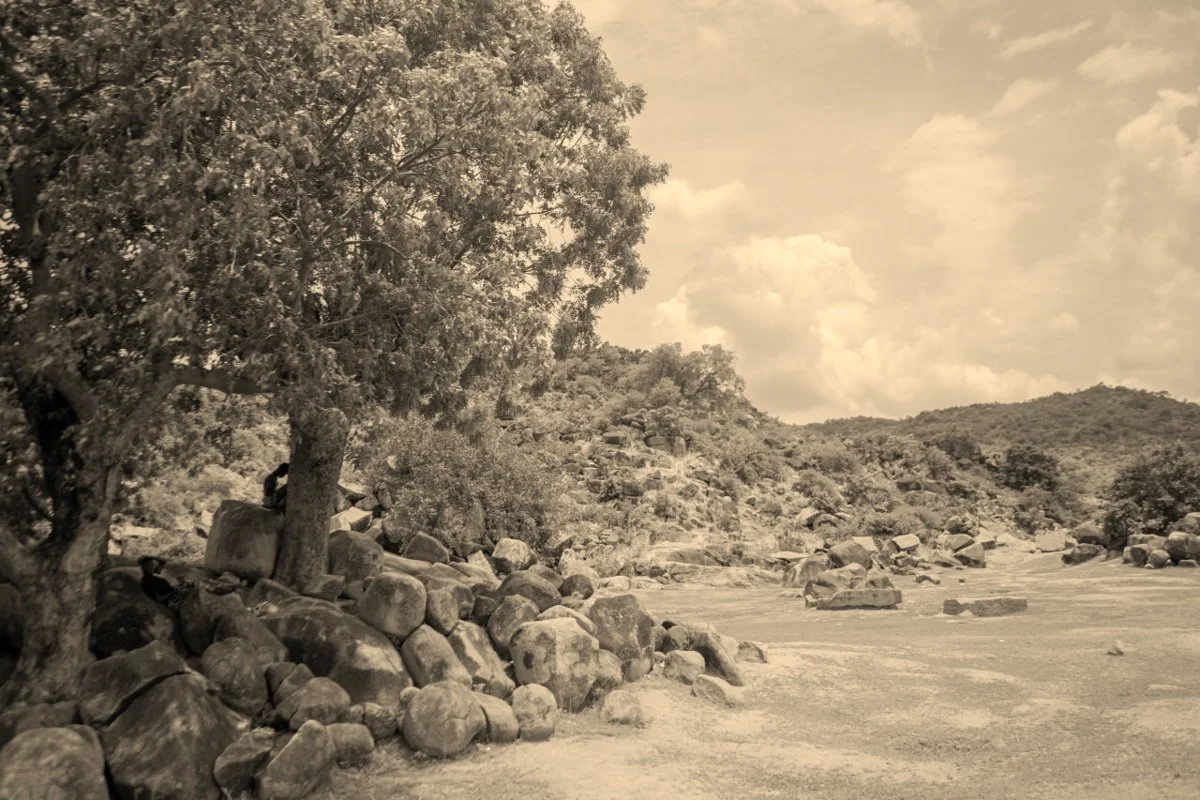
Source: Rocky landscape with trees and hills by Salma A. L Suhuyini, via Wikimedia Commons. CC0 1.0. Baseline resized; teaching edit altered as described here. No endorsement implied.
Try it: Establish the grayscale relationships first. Add a low-saturation warm tint. Keep lighter tones clean and judge the result beside neutral black and white. A digital sepia look is a color treatment, not evidence that a photograph is old.
Useful for: Historical interpretation, quiet architectural studies, or an intentionally coordinated series.
Watch for: Uniform orange coloring and misleading historical presentation. Label contemporary pictures accurately.
Adobe route: Enable Tint in a Photoshop Black & White adjustment layer and choose a restrained warm color. [3]
Exact demonstration settings: Sepia and warm monochrome
Weighted grayscale multiplied by RGB (1.08,0.96,0.79); clip to display range.
Educational edit made for this guide from a CC0 photograph. Settings are a reproducible simulation, not the source photographer’s process or an Adobe preset.
All demonstration arithmetic uses display-encoded RGB, not scene-linear RAW data. These formulas describe this guide’s illustration, not equivalent settings in a photo editor.
Selective color
What changes: Selected objects or hues retain color while the surrounding image becomes monochrome.

Source: Rocky landscape with trees and hills by Salma A. L Suhuyini, via Wikimedia Commons. CC0 1.0. Baseline resized; teaching edit altered as described here. No endorsement implied.
Try it: Choose one clear reason to retain color. Mask the intended region, then desaturate the inverse. Refine edges and inspect nearby objects sharing the same hue. A color-range selection may keep scattered patches you did not intend to emphasize.
Useful for: A simple visual exercise or a graphic concept where a particular color carries meaning.
Watch for: Fringes, missed patches, and an effect more conspicuous than the subject. This visual effect is different from Photoshop’s adjustment named Selective Color.
Adobe route: A Black & White adjustment layer with an edited mask keeps the source pixels intact. [4]
Exact demonstration settings: Selective color
Color-range mask m=clamp((G-max(R,B))/0.08,0,1); output m×RGB+(1-m)×weighted grayscale. Retains green foliage and grass.
Educational edit made for this guide from a CC0 photograph. Settings are a reproducible simulation, not the source photographer’s process or an Adobe preset.
All demonstration arithmetic uses display-encoded RGB, not scene-linear RAW data. These formulas describe this guide’s illustration, not equivalent settings in a photo editor.
Vignette
What changes: Gradually darkening or brightening the edges changes where the eye is drawn within the frame.
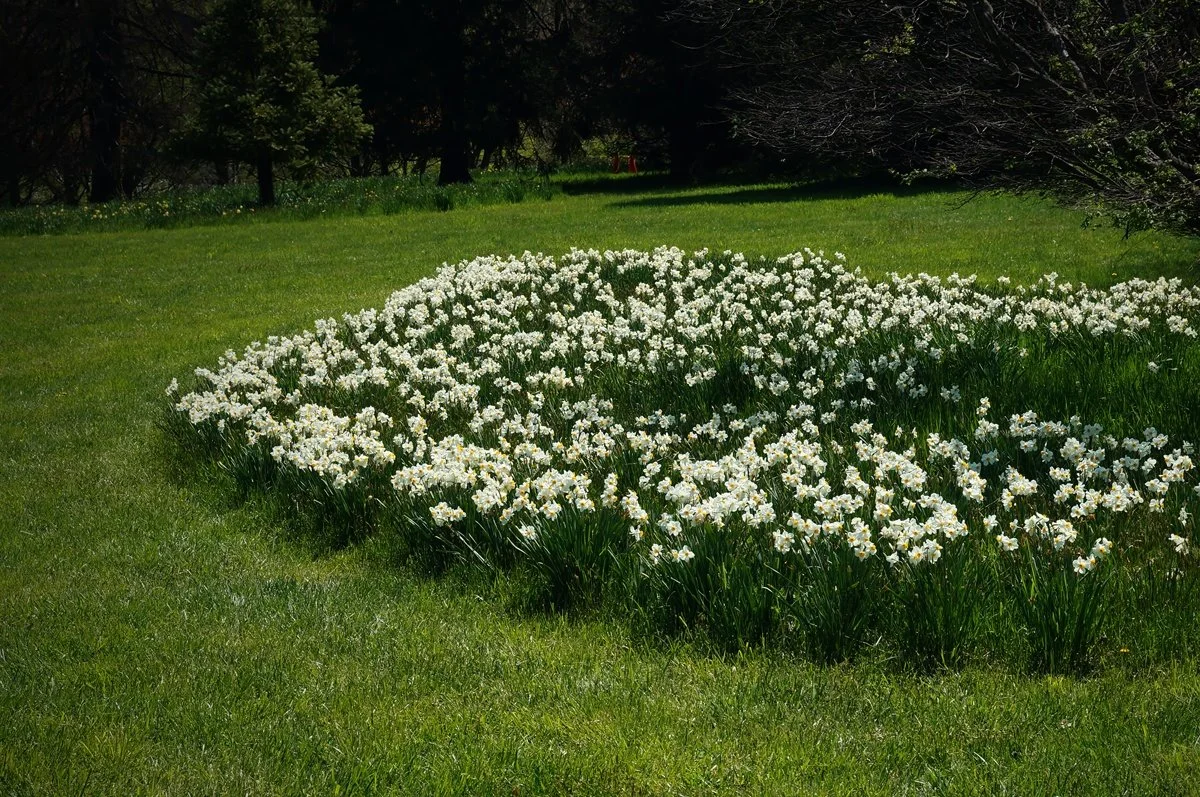
Source: Flowers in Full Bloom by Bruce Emmerling, via Wikimedia Commons. CC0 1.0. Baseline resized; teaching edit altered as described here. No endorsement implied.
Try it: Finish the crop first. Start with a broad, soft edge treatment. Position an elliptical mask around an off-center subject if a centered vignette works poorly. Compare the corners with the original and reduce strength before they look artificially blocked.
Useful for: Concentrating attention in a busy frame.
Watch for: Dark corners becoming a visible frame, uneven skies, and dimming an important edge subject. A creative vignette is separate from correcting unwanted lens falloff.
Adobe route: Lightroom’s Vignette controls include Feather, Midpoint, and Roundness. Use a radial mask when you need to move the effect off center. [5, 6]
Exact demonstration settings: Vignette
Elliptical edge mask centered (60%,62%), radii (72%,85%); m=clamp((distanceSquared-0.18)/0.9,0,1); multiply RGB by 1-0.48m.
Educational edit made for this guide from a CC0 photograph. Settings are a reproducible simulation, not the source photographer’s process or an Adobe preset.
All demonstration arithmetic uses display-encoded RGB, not scene-linear RAW data. These formulas describe this guide’s illustration, not equivalent settings in a photo editor.
Dodge and burn
What changes: Selected regions become lighter or darker to reinforce the photograph’s existing visual structure.
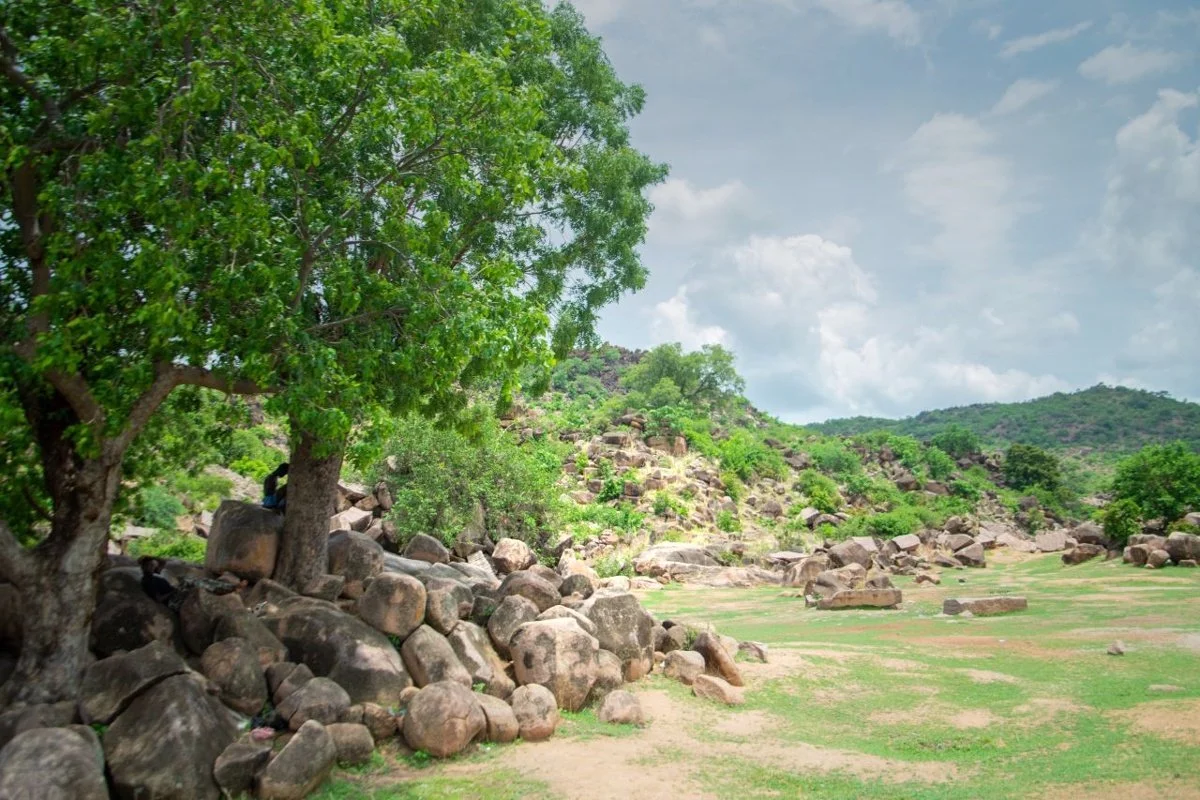
Source: Rocky landscape with trees and hills by Salma A. L Suhuyini, via Wikimedia Commons. CC0 1.0. Baseline resized; teaching edit altered as described here. No endorsement implied.
Try it: Choose one goal: for example, emphasize a rock formation and tone down the bright sky. Make separate feathered masks for lightening and darkening. Work in small increments, often around 0.1–0.3 exposure units as an initial trial where the editor uses an exposure scale. Toggle both masks together and inspect transitions.
Useful for: Guiding attention while retaining a natural-looking scene.
Watch for: Halos, brush marks, and invented-looking light. Our encoded-RGB demonstration is a visualization, not a physically accurate exposure change.
Adobe route: Lightroom Classic Masking supports Brush and gradients with local tonal adjustments. [6]
Exact demonstration settings: Dodge and burn
Brighten central rocks with Gaussian mask centered (47%,65%) and widths (20%,21%) by factor 2^(0.28m); darken top gradient by factor 2^(-0.25g), g=clamp((0.53-y/H)/0.4,0,1). Encoded-RGB demonstration, not physical exposure stops.
Educational edit made for this guide from a CC0 photograph. Settings are a reproducible simulation, not the source photographer’s process or an Adobe preset.
All demonstration arithmetic uses display-encoded RGB, not scene-linear RAW data. These formulas describe this guide’s illustration, not equivalent settings in a photo editor.
Film-grain simulation
What changes: A controlled texture is added across an otherwise clean digital image.
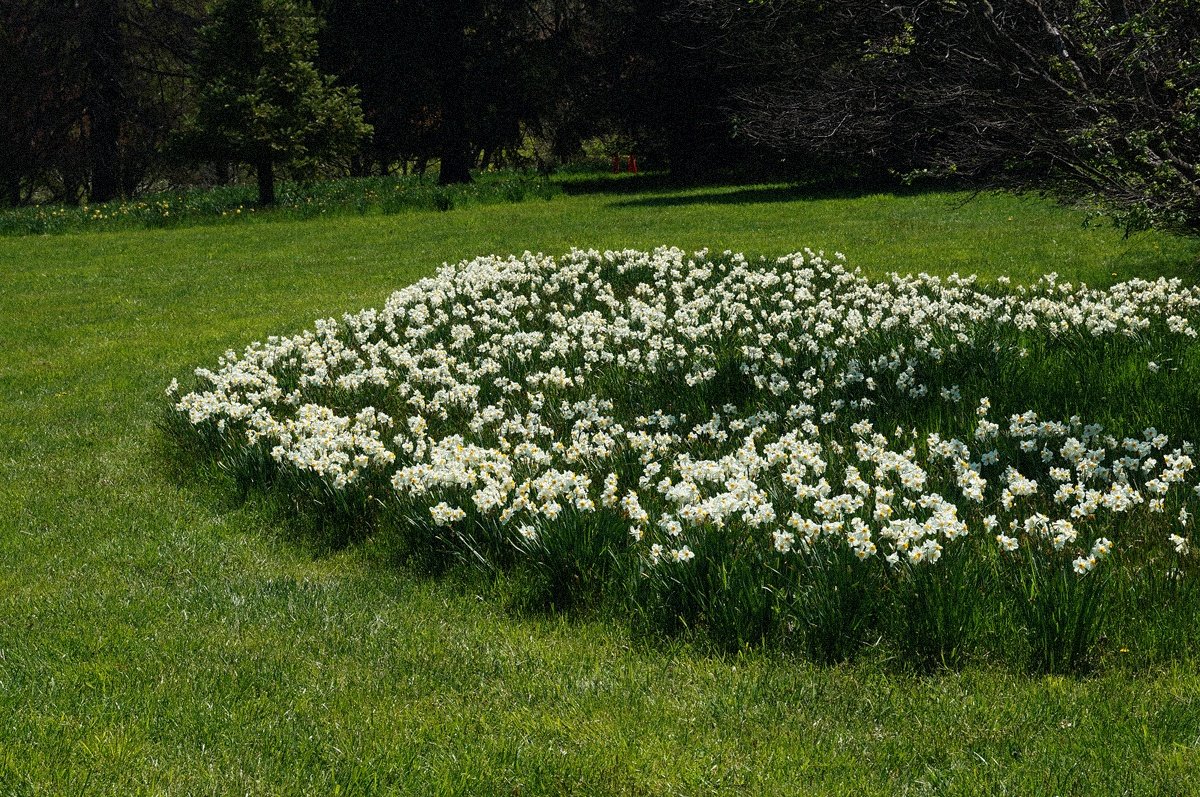
Source: Flowers in Full Bloom by Bruce Emmerling, via Wikimedia Commons. CC0 1.0. Baseline resized; teaching edit altered as described here. No endorsement implied.
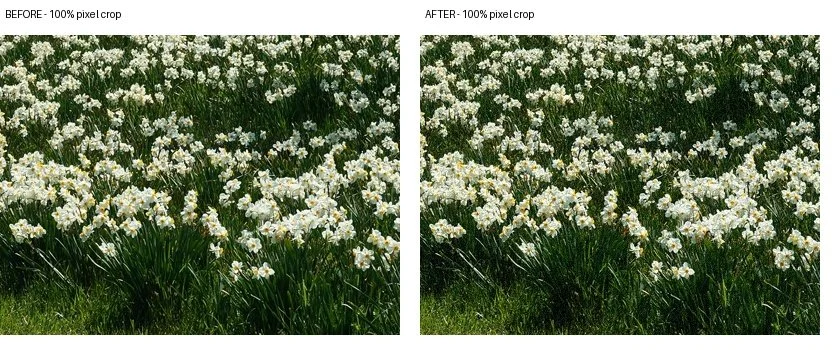
Try it: Choose the intended output size first. Add a small amount of grain and inspect its size and roughness at 100% and at normal viewing distance. Compare a separate export, since resizing and compression change how the texture appears.
Useful for: An intentionally textured presentation or consistency across a series.
Watch for: Grain competing with fine detail or being confused with unwanted sensor noise. A generic grain effect does not reproduce a particular film stock’s complete behavior.
Adobe route: Lightroom’s grain controls vary amount, size, and roughness. [7]
Exact demonstration settings: Film-grain simulation
Add monochrome Gaussian noise σ=0.035 to normalized RGB; fixed NumPy random seed 20261018. Digital grain simulation, not emulation of a named film.
Educational edit made for this guide from a CC0 photograph. Settings are a reproducible simulation, not the source photographer’s process or an Adobe preset.
All demonstration arithmetic uses display-encoded RGB, not scene-linear RAW data. These formulas describe this guide’s illustration, not equivalent settings in a photo editor.
Soft glow
What changes: Bright areas gain a soft surrounding glow while some underlying detail remains visible.
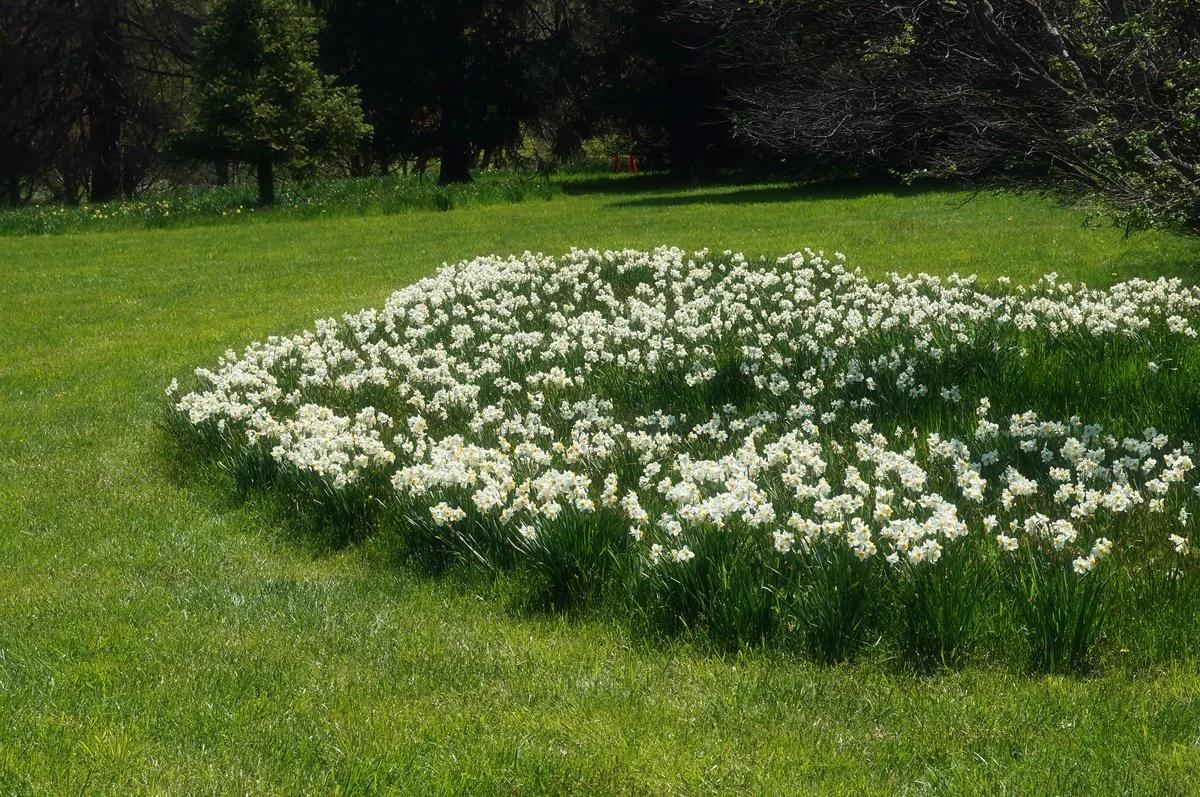
Source: Flowers in Full Bloom by Bruce Emmerling, via Wikimedia Commons. CC0 1.0. Baseline resized; teaching edit altered as described here. No endorsement implied.
Try it: Duplicate the working image in a layered document. Blur that layer, combine it with a lightening blend mode, then lower its opacity. Begin around 10–25% opacity and inspect the result at final size; use a mask to keep essential detail clear. Our example is intentionally stronger at 30%.
Useful for: Backlit foliage, flowers, and a clearly artistic atmosphere.
Watch for: Washed-out highlights, halos, and accidental loss of the subject’s most important detail. Soft glow is not a repair for missed focus.
Adobe route: Keep the blurred layer and its opacity adjustable; Photoshop documents layer blending and Smart Filters. [8]
Exact demonstration settings: Soft glow
Gaussian blur radius 10 px on a 1200 px-wide derivative; Screen blend 1-(1-source)(1-blur), mixed at 30%.
Educational edit made for this guide from a CC0 photograph. Settings are a reproducible simulation, not the source photographer’s process or an Adobe preset.
All demonstration arithmetic uses display-encoded RGB, not scene-linear RAW data. These formulas describe this guide’s illustration, not equivalent settings in a photo editor.
Local contrast and clarity
What changes: The difference between nearby light and dark areas becomes stronger, making texture and depth more apparent.
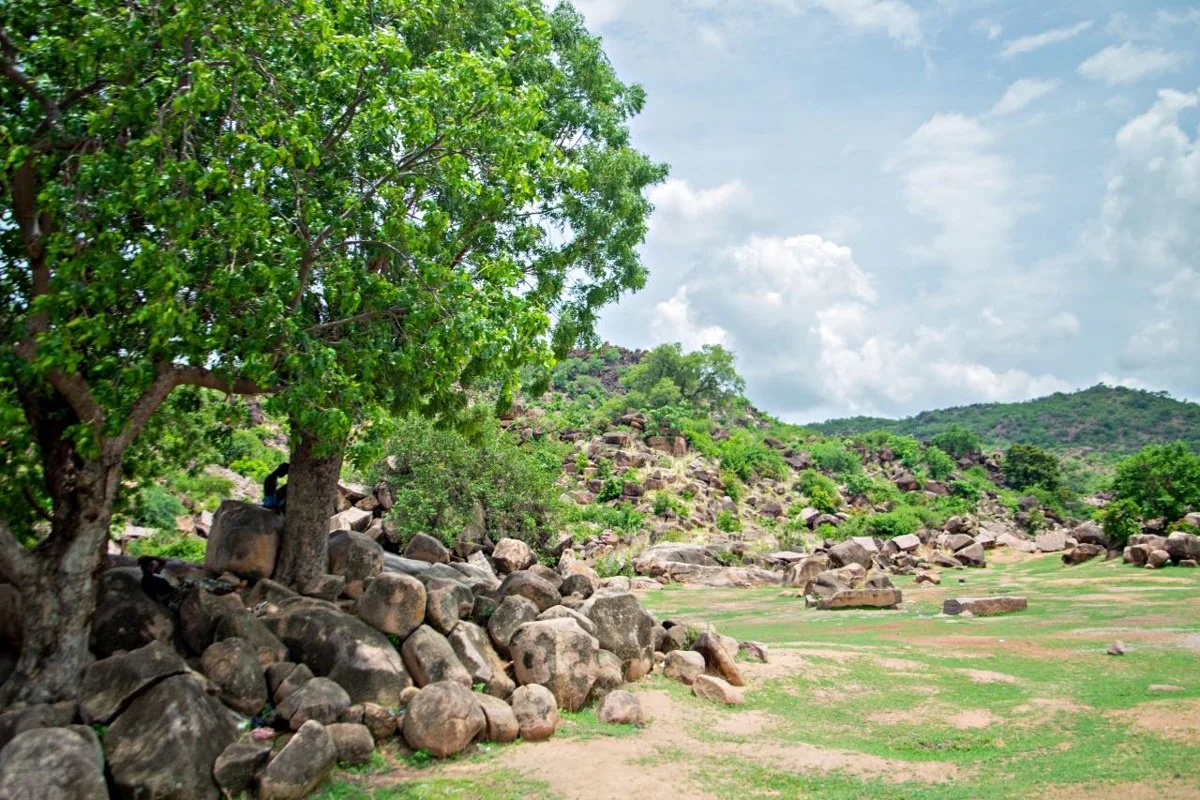
Source: Rocky landscape with trees and hills by Salma A. L Suhuyini, via Wikimedia Commons. CC0 1.0. Baseline resized; teaching edit altered as described here. No endorsement implied.
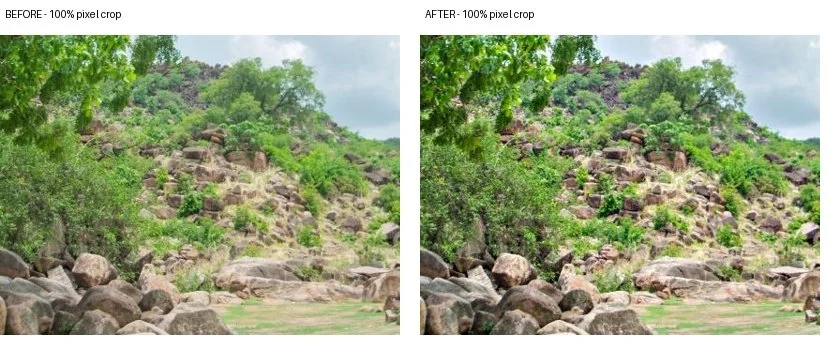
Try it: Increase local contrast in small steps. Prefer a targeted mask when only rocks, fabric, or architecture need it. Compare both small and large edges. Reduce the effect if outlines develop bright or dark bands.
Useful for: Revealing existing texture in suitable surfaces.
Watch for: Crunchy foliage, exaggerated skin texture, and halos. Local contrast is different from recovering true detail, and it is not a substitute for capture sharpness.
Adobe route: Lightroom provides Texture and Clarity, with different behavior. The demonstration here uses a documented large-radius contrast algorithm rather than claiming to reproduce Adobe Clarity. [5]
Exact demonstration settings: Local contrast and clarity
Large-radius unsharp-style local contrast: source + 0.32×(source - Gaussian blur radius 12 px); 1200 px-wide derivative. Not equivalent to proprietary Clarity.
Educational edit made for this guide from a CC0 photograph. Settings are a reproducible simulation, not the source photographer’s process or an Adobe preset.
All demonstration arithmetic uses display-encoded RGB, not scene-linear RAW data. These formulas describe this guide’s illustration, not equivalent settings in a photo editor.
Cross-process-inspired color
What changes: Individual color channels receive different tonal responses, producing intentional color casts and unusual contrast.
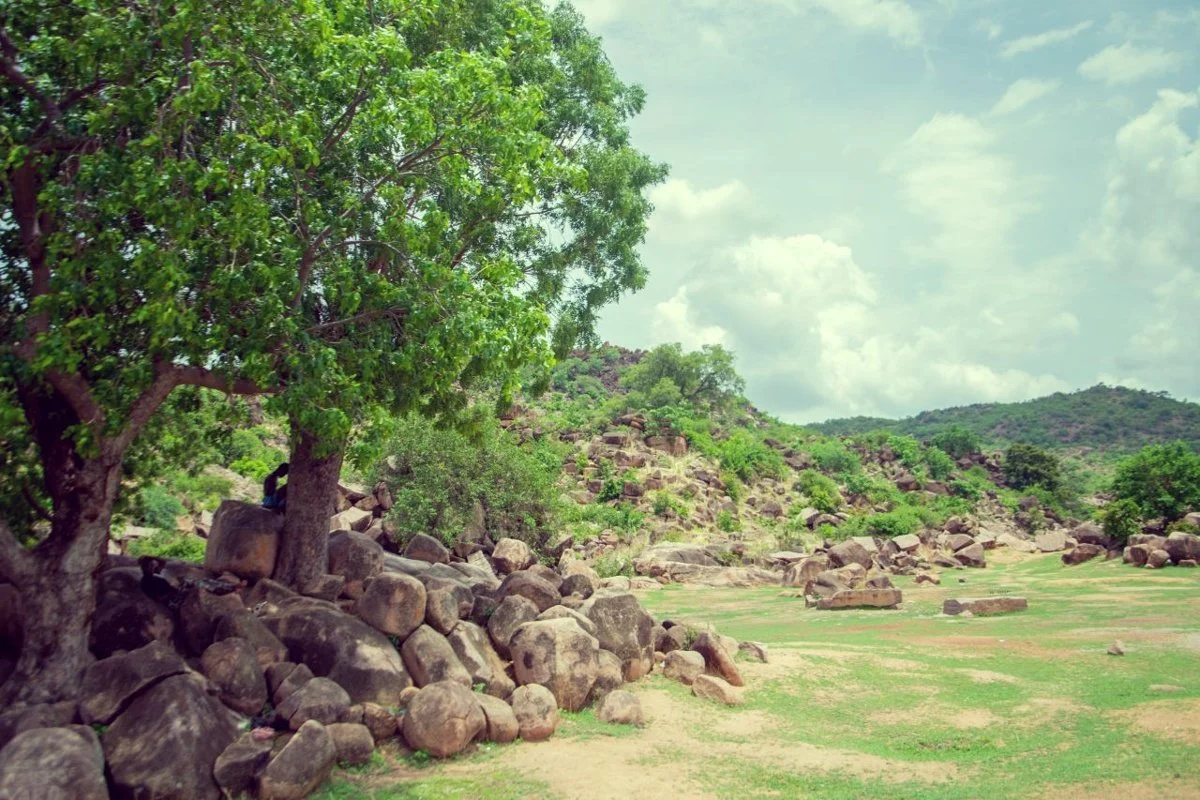
Source: Rocky landscape with trees and hills by Salma A. L Suhuyini, via Wikimedia Commons. CC0 1.0. Baseline resized; teaching edit altered as described here. No endorsement implied.
Try it: Use a separate RGB-channel curve adjustment. Make small changes in one channel’s shadows or highlights, then compare the balance with the other channels. Lower the adjustment’s opacity if the color changes are too strong. Save the original neutral version for comparison.
Useful for: Experimental color studies and an overtly stylized series.
Watch for: Unexpected skin tones, clipped channels, and inconsistent results across mixed lighting. This digital interpretation should not be described as chemically cross-processed film.
Adobe route: Photoshop Curves permits separate channel adjustments; retain the adjustment as a reversible layer. [2]
Exact demonstration settings: Cross-process-inspired color
Red channel 0.04+0.96R; green contrast 1.12 around 0.5; blue 0.08+0.82B. Digital channel-shift interpretation, not chemical film processing.
Educational edit made for this guide from a CC0 photograph. Settings are a reproducible simulation, not the source photographer’s process or an Adobe preset.
All demonstration arithmetic uses display-encoded RGB, not scene-linear RAW data. These formulas describe this guide’s illustration, not equivalent settings in a photo editor.
Photo credits and demonstration notes
All 12 before-and-after examples use these two CC0 photographs. The source photographers did not supply or endorse these editing recipes. The baseline images were resized from the published files, and the after images were altered for teaching.
Flowers in Full Bloom
Photograph by Bruce Emmerling. Source file and creator information · CC0 1.0 public-domain dedication.
Rocky landscape with trees and hills
Photograph by Salma A. L Suhuyini. Source file and creator information · CC0 1.0 public-domain dedication.
Comparison JPEGs include an sRGB profile. The published flower photograph had an embedded sRGB profile. The landscape source had no embedded profile and was interpreted as sRGB for these web examples; its original capture color space is not verified.
Preserve your original files and check the exported result on your own display. The examples are teaching simulations, not evidence of the source photographers’ editing methods.
References
- Adobe, Lightroom desktop editing
- Adobe, Curves adjustment
- Adobe, Convert a color image to black and white
- Adobe, Apply color adjustments with the Adjustments panel
- Adobe, Adjust effects
- Adobe, Lightroom Classic Masking tool
- Adobe, Adjust effects, Grain
- Adobe, Layer opacity and blending; Apply Smart Filters